You’re standing in front of your door, ready to walk in—your Apple Watch is on, your iPhone is in your pocket, and you’re just a tap away from unlocking with Level Lock+ Home Key. But nothing happens. The lock doesn’t respond, even when you’re right up against it. This frustration is more common than you think, especially when the Home Key stops working unexpectedly. Whether it’s a failed unlock attempt, inconsistent performance across devices, or a sudden loss of functionality, the root cause often lies in setup, hardware alignment, or subtle mechanical issues—not just software glitches.
This guide cuts through the noise with research-backed troubleshooting steps. You’ll learn how to diagnose and fix common issues like improper device positioning, NFC signal interference, and mechanical delays in bolt movement. We’ll walk you through resetting the lock, verifying door compatibility, and ensuring proper installation. You’ll also discover reliable backup methods—like using physical keys or the Level app—so you’re never locked out. By the end, you’ll understand not just why the Home Key might fail, but exactly what to do about it.
Understanding Apple Home Key Functionality with Level Lock+
How Apple Home Key Uses NFC Technology
The Level Lock+ leverages a low-power NFC (Near Field Communication) tag to enable seamless unlocking with compatible Apple devices. Unlike Bluetooth-based systems, NFC operates only when devices are in close proximity—typically within a few centimeters—making it inherently more secure and precise. This technology, introduced by Apple in the iPhone 6 for Apple Pay, has evolved to support smart home integration, including Apple Home Keys.

When you tap your iPhone or Apple Watch near the lock, the device’s NFC chip communicates with the lock’s embedded tag, triggering an encrypted unlock action stored securely in Apple Wallet. This process requires no network connectivity, battery power in the lock for the signal, or manual device interaction beyond a simple tap.
The Advantages of Proximity-Based Unlocking
Compared to Bluetooth-based auto-unlock systems, NFC-powered Home Key offers several key benefits:
- Intentionality: Users must actively bring their device close to the lock, reducing accidental unlocks and false positives.
- Immediate response: NFC connections are established in milliseconds, eliminating the lag common with Bluetooth location-based systems.
- Seamless integration: Home Key works instantly with Apple Wallet, requiring no additional app or device wake-up—your Apple Watch can unlock the door even when the screen is off, thanks to Express Mode.
- Reliability: NFC is less prone to interference from walls, other devices, or signal fluctuations, ensuring consistent performance in real-world conditions.
- Energy efficiency: The lock’s NFC tag consumes minimal power, and the unlocking process doesn’t drain your device’s battery.
This proximity-based approach ensures that unlocking is both secure and effortless—perfect for users who value precision, speed, and peace of mind.
Common Issues with Level Lock+ Home Key Not Working
Failed Unlock Attempts Despite Proper Proximity
Even when your device is within the recommended range, the Level Lock+ may fail to unlock. This typically occurs due to minor mechanical delays in the bolt’s movement or slight misalignment of the lock mechanism. The NFC signal is processed instantly, but the physical act of retracting the bolt can be delayed if the door isn’t fully closed or if the latch is under slight resistance.
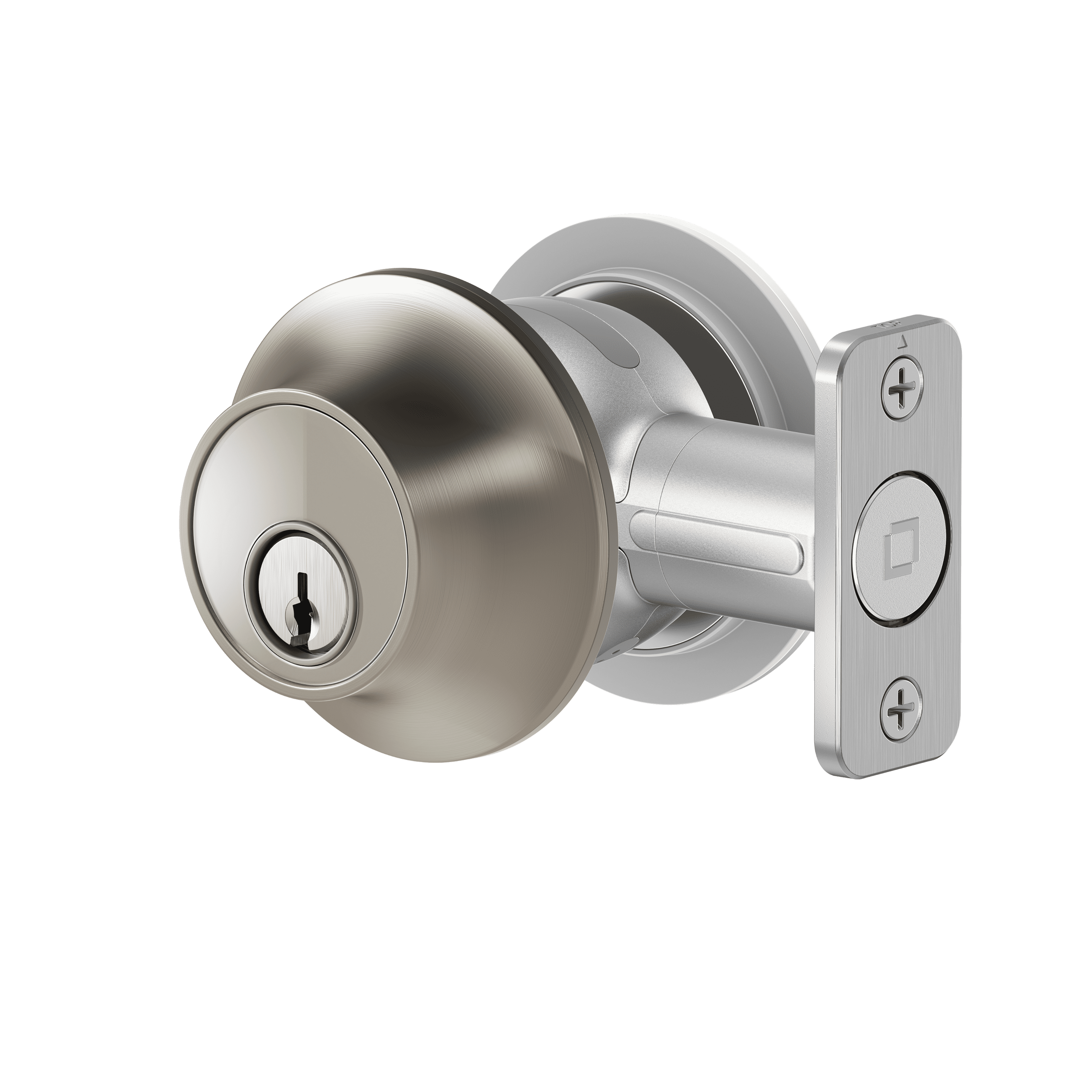
In some cases, users report needing to reposition their device slightly—such as angling the iPhone or Apple Watch—before the unlock succeeds. These issues are rare but can be frustrating when they occur.
- The lock may require the device to be held at a precise angle or distance.
- Mechanical resistance from the door or latch can delay bolt retraction.
- A door that isn’t fully closed may prevent the lock from engaging properly.
- The lock’s internal motor may experience brief delays under certain conditions.
Inconsistent Performance Across Devices
Users have reported that the Home Key works reliably on one device—such as an iPhone—but fails on another, like an Apple Watch, even when both are properly set up and in range. This inconsistency is often due to differences in NFC antenna placement, signal strength, or device-specific software behavior. For example, an Apple Watch may have a weaker NFC signal than an iPhone, especially if the watch is worn on a wrist with thick clothing or metal bands. Additionally, some users have noted that the Home Key works on one Apple Watch model but not a newer version, suggesting firmware or hardware variations affect performance.
- Apple Watch may require more precise positioning than iPhone.
- Differences in NFC antenna design between devices can affect signal reliability.
- Software updates on one device may temporarily disrupt Home Key functionality.
- Metal accessories or clothing can interfere with NFC signal transmission.
Setup and Configuration Challenges for Home Key
HomeKit Integration Failures
Initial setup issues with the Level Lock+ Home Key often stem from naming conflicts or improper device configuration within Apple Home. A common cause is attempting to use the same name for multiple locks in your HomeKit ecosystem, which can confuse the system and prevent successful pairing. This is especially likely if you’re upgrading from a previous Level Lock model and haven’t renamed the new device. Apple HomeKit relies on unique device identifiers, and duplicate names disrupt the integration process.

- Use distinct, descriptive names for each lock (e.g., “Front Door Lock+” instead of “Level Lock”).
- Avoid using generic names like “Lock” or “Door” across multiple devices.
- Ensure the lock is listed in the Home app before attempting to assign a Home Key.
Resetting the Lock for a Fresh Start
When integration fails due to configuration errors, resetting the lock is the most effective solution. This clears any corrupted settings and allows for a clean setup. The reset process requires physical access to the lock’s internal housing.
- Remove the back housing of the Level Lock+ by unscrewing the mounting screws.
- Locate the small reset button on the circuit board—typically a recessed pinhole.
- Press and hold the reset button for 5–10 seconds using a paperclip or similar tool.
- Reinstall the back housing and insert the CR2 battery.
- Re-pair the lock through the Home app, ensuring you use a unique name during setup.
This process resolves most setup failures, even if the first attempt doesn’t succeed. After a reset, the lock will appear as a new device in HomeKit, allowing for a fresh configuration.
Physical and Mechanical Factors Affecting Home Key Performance
The reliability of the Level Lock+ Home Key feature depends heavily on the physical condition and mechanical alignment of your door and lock system. Even minor deviations in door mechanics can disrupt the precise timing and motion required for NFC-based unlocking, leading to failed attempts or error messages.
Door Alignment and Bolt Movement
A misaligned door or obstructed bolt mechanism can prevent the lock from engaging or retracting properly within the expected timeframe. This delay may trigger a timeout in the Home Key system, resulting in a failed unlock attempt. Key mechanical checks include:
- Ensuring the door opens and closes smoothly without binding or resistance.
- Verifying that the bolt moves freely in and out of the strike plate.
- Confirming the door is fully closed before attempting to unlock with Home Key.
- Checking that the strike plate is properly aligned with the bolt.
Even slight misalignments—often caused by door settling, warping, or loose hinges—can interfere with the lock’s ability to respond correctly to the Home Key signal.
Impact of Door Condition on Lock Operation
The overall condition of the door and frame directly influences lock performance. A door that is warped, sagging, or improperly installed may not seat correctly in the frame, causing the bolt to jam or fail to fully extend. This mechanical resistance can prevent the lock from completing its cycle, especially when relying on the precise timing required for NFC communication.
- Inspect the door for visible warping, gaps, or uneven gaps around the frame.
- Test the door’s closure by closing it gently and checking for resistance.
- Ensure the strike plate is securely fastened and aligned with the bolt.
- Address any door or frame issues before troubleshooting Home Key functionality.
Minor mechanical problems may not be obvious but can significantly affect performance. If adjustments don’t resolve the issue, professional assistance from a locksmith or door specialist is recommended to ensure proper alignment and operation.
Installation and Compatibility Considerations
Door Compatibility and Fit
The Level Lock+ is designed to fit standard exterior doors that meet ANSI specifications. It replaces your existing deadbolt and requires precise measurement to ensure proper fit. Before installation, confirm your door has a standard 2 3/8″ or 2 3/4″ backset and a latch bore diameter of 1″ (25.4 mm).
The lock’s compact design—measuring 2.8″ x 2.8″ x 4.5″—allows it to fit within most standard door thicknesses (1 3/8″ to 1 3/4″). If the lock housing doesn’t align with the door’s existing hole, minor adjustments may be needed. A misaligned strike plate or door frame can cause the bolt to bind, leading to operational issues.
Installation Process and Tools Required
Proper installation ensures reliable Home Key functionality and long-term performance. Follow these steps carefully:
- Remove the existing deadbolt by unscrewing the mounting screws and extracting the internal components.
- Install the Level Lock+ housing into the door’s bore, ensuring the bolt aligns with the strike plate.
- Replace the internal components, including the motor and bolt assembly, using the included hardware.
- Secure the housing with the provided screws and attach the exterior keyway and turn paddle.
- Insert the CR2 battery and test the lock’s operation manually before finalizing setup.
If the strike plate doesn’t align with the bolt, use a rubber mallet to gently adjust the door frame or strike plate. Avoid forcing components, as this can damage the lock or door. Always verify the door closes fully and the bolt retracts smoothly before enabling Home Key features.
Alternative Access Methods When Home Key Fails
When your Level Lock+ Home Key fails to work—due to device issues, low battery, or signal interference—you still have reliable backup options to access your door. The lock is designed with multiple redundant access methods to ensure you’re never locked out.
Using Physical Keys and Key Fobs
The Level Lock+ comes with two physical keys and two NFC key fobs included in the box. These provide immediate access without relying on your phone or app:
- Insert the physical key into the exterior keyway and turn to unlock.
- Hold an NFC key fob close to the lock’s sensor (within 1–2 inches) to trigger unlocking.
- Both methods work independently of internet connectivity, app status, or device battery levels.
- The keys and fobs are designed for durability and are compatible with the lock’s standard keyway.
These are ideal for emergency access, backup use, or when your phone is unavailable.
Remote Access via the Level App
Even if your Home Key fails, the Level app remains a powerful tool for managing access:
- Open the app on your smartphone to remotely lock or unlock the door.
- Create time-limited access passes for guests, service providers, or family members.
- Monitor a real-time log of who unlocked the door and when, even when Home Key is not working.
- Adjust settings like auto-lock timing, volume, and touch-to-lock sensitivity.
Remote access requires an active internet connection and the app to be installed, but it ensures full control regardless of your device’s proximity to the door.
Troubleshooting and Maintenance Best Practices
Battery Health and Power Management
Low battery levels can significantly impact the performance of your Level Lock+, especially when using the Apple Home Key feature. The lock relies on a CR2 battery with a typical lifespan of 6 to 12 months, depending on usage patterns. When the battery drops below 20%, the Level app will send a notification to alert you. Proactively replacing the battery at this stage prevents unexpected lockouts and ensures consistent functionality.
- Replace the CR2 battery as soon as the app indicates low battery.
- Use only the recommended CR2 lithium battery to maintain optimal performance.
- Enable Power Reserve in the Level app for continued access via Apple Home Keys even after your iPhone battery is depleted. This feature is compatible with iPhone XS and iOS 15 or later.
Resetting the Lock and Reconnecting
If your Level Lock+ Home Key continues to fail despite battery checks, perform a reset to resolve software or connectivity issues.
- Remove the battery from the lock for exactly 10 seconds.
- Reinsert the battery and wait for the lock to power back on.
- If the issue persists, use the Level app to initiate a reset via the device settings.
- After resetting, re-pair the lock with your iPhone and re-add the Home Key in Apple Wallet.
Even if connectivity is lost or the app is unavailable, the lock can still be operated manually using the included physical keys or NFC key fobs. This ensures you always have access, regardless of device or network status.
Conclusion
If your Level Lock+ Home Key isn’t working, the issue is rarely a fundamental flaw—it’s usually a matter of setup, alignment, or minor mechanical factors. The most effective fix is often a simple reset followed by a fresh HomeKit setup, ensuring your device name is unique and your lock is properly aligned. Always verify that your door closes fully and the bolt moves freely, as even slight misalignment can disrupt the precise timing needed for NFC unlocking.
For immediate access when Home Key fails, rely on the included physical keys or NFC key fobs—both work independently of your phone’s battery or app status. Regularly monitor battery levels via the Level app, and enable Power Reserve for continued access after your iPhone charges. If problems persist, check for firmware updates and ensure your device supports Express Mode for seamless unlocking.
FAQ
Why isn’t my Apple Watch unlocking my Level Lock+ with Home Key?
Your Apple Watch may fail to unlock the Level Lock+ due to improper positioning, weak NFC signal, or software issues. Ensure the watch is held close (within a few centimeters) and angled correctly against the lock. Metal watch bands or thick clothing can interfere with the NFC signal. If the issue persists, restart your Apple Watch, ensure it’s updated to the latest iOS version, and verify that Express Mode is enabled in the Apple Watch app. A reset of the lock via the Level app may also resolve persistent pairing problems.
What should I do if the Home Key stops working after a software update?
After a software update, the Home Key may stop working due to temporary glitches or configuration conflicts. First, restart both your Apple Watch and iPhone. Ensure the Level app and iOS are fully updated. Open the Apple Home app, go to your Level Lock+ device, and re-add the Home Key from Apple Wallet. If the issue continues, reset the lock by removing the battery for 10 seconds, then reinsert it and re-pair the device through the Home app. This clears any corrupted settings caused by the update.
Can I use the Level Lock+ without the app or Home Key?
Yes, you can use the Level Lock+ without the app or Home Key. The lock includes two physical keys and two NFC key fobs for manual access. You can also use the lock’s built-in touch-to-lock feature, which automatically engages the lock when you touch the exterior housing. These methods work independently of your phone, app, or internet connection, ensuring you’re never locked out.
How do I fix a Home Key that works on my iPhone but not my Apple Watch?
If Home Key works on your iPhone but not your Apple Watch, the issue is likely due to differences in NFC antenna strength or positioning. Try holding your Apple Watch closer and at a different angle to the lock. Avoid metal bands or thick clothing that may block the signal. Ensure your Apple Watch is updated to the latest watchOS version and that Express Mode is enabled in the Apple Watch app. If problems persist, reset the lock via the Level app and re-add the Home Key for your watch.
What causes the lock to fail to engage or disengage?
The lock may fail to engage or disengage due to mechanical issues like a misaligned door, warped frame, or obstructed bolt. Ensure the door closes fully and the strike plate is properly aligned. Check for resistance when the bolt moves. If the door is sagging or the frame is loose, adjust or repair the door. A low battery can also prevent the motor from completing its cycle. Replace the CR2 battery if it’s below 20% capacity.
How long does the Level Lock+ battery last, and how do I know when it needs replacing?
The Level Lock+ CR2 battery lasts 6 to 12 months, depending on usage. The Level app sends a “low battery” notification when the charge drops below 20%, giving you ample time to replace it. Use only the recommended CR2 lithium battery. The Power Reserve feature allows continued use of Apple Home Keys even after your iPhone battery is depleted, provided you have an iPhone XS or later with iOS 15 or higher.