You’re not alone if your Fn key is behaving strangely—maybe your F1–F12 keys are triggering media controls instead of standard functions, or the Fn lock won’t toggle no matter what you try. This is especially frustrating when you’re in the middle of a game, presentation, or coding session and suddenly can’t use your function keys as expected. The good news is that this issue is usually fixable without replacing your keyboard.
This guide walks you through proven, step-by-step solutions for fixing Fn lock issues on both standard Windows keyboards and Logitech models. You’ll learn how to toggle the lock using common shortcuts like Fn + Esc, adjust settings in BIOS/UEFI, and use Logi Options+ software to customize behavior. We’ll also cover why standard fixes might fail and when it’s time to contact support—so you can get back to working smoothly, no matter your setup.
Understanding the Fn Key and Its Lock Function
The Fn (Function) key is a modifier key that unlocks secondary functions on the F1–F12 keys found along the top of most keyboards. It doesn’t do anything on its own—its purpose is to activate alternate commands when pressed in combination with another key. For example, pressing Fn + F11 might lower screen brightness, while Fn + F10 could mute audio.
What the Fn Key Does on a Keyboard
- The Fn key enables access to secondary functions assigned to the F-row keys.
- These functions typically include media controls (play/pause, volume up/down), screen brightness adjustment, keyboard backlighting, and screenshot capture.
- On many laptops and compact keyboards, the primary functions (F1–F12) are hidden by default, requiring the Fn key to access them.
- The Fn key is usually located near the bottom-left corner of the keyboard, close to the Ctrl or Alt keys.
- On Logitech keyboards, the Fn key is designed to be active by default, meaning secondary functions are available without holding Fn.
How Fn Lock Changes Key Behavior
- Fn lock toggles between two modes: standard F1–F12 behavior and secondary function mode.
- When Fn lock is on, pressing F1–F12 triggers their secondary functions (e.g., volume control).
- When Fn lock is off, pressing F1–F12 activates their primary functions (e.g., F1 for Help, F5 for Refresh).
- On most Logitech keyboards, the Fn key is locked by default, so secondary functions are active without needing to hold Fn.
- To toggle Fn lock, press Fn + Esc—this is the most common method across many models.
- Some keyboards feature a physical Fn lock key with a padlock icon, allowing direct toggling.
- If Fn lock stops responding, it may be due to a BIOS setting change, software conflict, or driver issue.
How to Lock and Unlock the Fn Key Using Keyboard Shortcuts
The Fn key lock feature allows you to switch between standard F1–F12 functions and secondary media or system controls. Toggling this lock using keyboard shortcuts is the fastest way to resolve issues where the Fn key behaves unexpectedly. Most modern laptops and Logitech keyboards support quick toggle methods without requiring software or BIOS changes.

Try the Standard Fn + Esc Shortcut
This is the most widely supported method across laptop and keyboard models, including many Logitech devices. To toggle the Fn lock:
- Press and hold the Fn key (usually located near the bottom-left of the keyboard).
- While holding Fn, press the Esc key.
- Release both keys.
If successful, the Fn lock status will change. A small indicator light (if available) or on-screen notification may confirm the toggle. Test by pressing F11—without Fn lock, it should trigger the standard F11 function (e.g., browser refresh), not media control.
Check for Alternative Key Combinations
If Fn + Esc doesn’t work, try these alternatives, as some keyboards use different combinations:
- Fn + Shift: On certain models, this combination toggles the Fn lock.
- Fn + F12: Some laptops use this for Fn lock, especially older or branded models.
- Fn + Spacebar: Rare, but reported on specific Logitech and Dell devices.
These variations depend on the manufacturer and keyboard model. If one combination fails, try another. If none work, the Fn lock may be disabled in BIOS or controlled by software like Logi Options+.
Using BIOS/UEFI Settings to Fix Fn Lock Issues
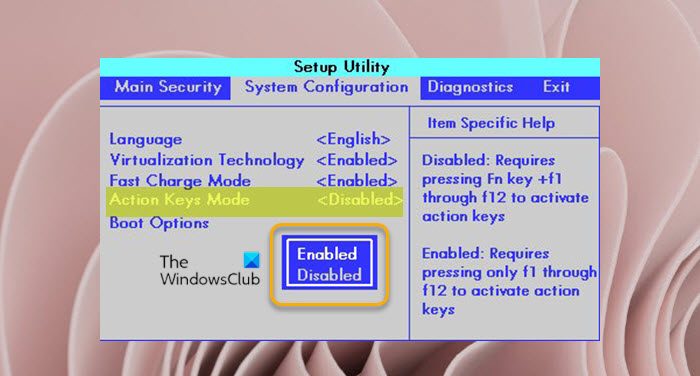
When keyboard shortcuts and software settings fail to resolve persistent Fn lock issues, adjusting your system’s BIOS/UEFI settings offers a reliable, low-level solution. This method directly controls how your keyboard’s function keys behave at the hardware level, making it effective for both laptops and desktops with external keyboards.
Accessing the BIOS/UEFI During Startup
To access BIOS/UEFI settings, restart your computer and press a specific key during the initial boot sequence. The correct key varies by manufacturer and model:
- Dell: Press F2 or F12 during startup.
- HP: Try F10 or Esc.
- Lenovo: Use F1, F2, or Enter followed by F1.
- ASUS: Press F2 or Del.
- Acer: Use F2 or Del.
If unsure, search online for your device’s exact model name followed by “enter BIOS.” For example: “Dell Inspiron 15 5000 enter BIOS.” The key must be pressed repeatedly as the computer boots—timing is critical, as the window is brief.
Adjusting Function Key Behavior in BIOS
Once inside BIOS/UEFI:
- Use the arrow keys to navigate to the Advanced or System Configuration tab.
- Look for a setting labeled Action Keys Mode, Function Key Behavior, or Hotkey Mode.
- Change the setting from Enabled to Disabled.
- Save changes and exit—usually by pressing F10, then confirming with Enter.
This change disables the default behavior where F1–F12 keys trigger media or system functions (like volume or brightness) when pressed alone. After rebooting, the F1–F12 keys will function as standard keys without requiring the Fn key. This setting is permanent and applies across all operating systems.
What to Do If the Fn Key Lock Isn’t Working
When standard fixes like Fn + Esc or BIOS adjustments don’t resolve the issue, the problem may stem from deeper software conflicts or hardware limitations. These scenarios require targeted troubleshooting beyond basic keyboard shortcuts.
Check for Software Conflicts
Third-party keyboard management tools can override or interfere with Fn key behavior, especially on Logitech devices connected via Unifying receiver.
- Logi Options+ is a common source of unexpected Fn key behavior changes.
- One user reported that toggling the ‘Use F1 etc. as standard keys’ option in Logi Options+ resolved a persistent Fn lock failure.
- If you’ve recently installed or updated keyboard software, check its settings for Fn key overrides.
- Try temporarily disabling or uninstalling such software to test if the Fn lock function returns.
Verify Keyboard Model and Compatibility
Not all keyboards support a physical Fn lock, and some lack the necessary hardware to toggle this function.
- External keyboards without a dedicated Fn lock key (often indicated by a padlock symbol) may not support the feature at all.
- Some models rely entirely on software or BIOS settings to manage F-key behavior.
- Check your keyboard’s official documentation or manufacturer website to confirm whether Fn lock is supported.
- If the keyboard lacks a physical Fn lock key, no key combination will enable it—behavior is determined by firmware or software settings.
How to Turn Off the Fn Function Key on Your Keyboard
Using Windows Settings to Toggle Fn Behavior
Many Windows 11 users encounter difficulty locating the Fn key settings due to changes in the interface. Follow these steps to access the correct settings:
- Press Windows + I to open the Settings app.
- Click on “Bluetooth & devices” (or “Devices” on some systems) in the left sidebar.
- Scroll down and look for “Keyboard” or “Additional keyboard settings”.
- If available, find an option like “Use the F1-F12 keys as standard function keys” and toggle it on.
- If the option isn’t visible, use the search bar at the top of Settings and type “keyboard”.
- Select “Keyboard properties” from the results and check for any Fn key behavior settings.
If no settings appear, the issue may be hardware-specific or require BIOS adjustment.
Alternative Methods for Persistent Issues
When Windows settings don’t resolve the issue, try these proven alternatives:
- Try the Fn + Esc shortcut: On many laptops and keyboards, holding Fn + Esc toggles the Fn lock. Test this immediately—press F11 or F12 to verify if the keys now behave as standard function keys.
- Check BIOS/UEFI settings: Restart your PC and press F2, F10, F12, or Delete during boot-up (depending on your brand). In BIOS, navigate to Advanced or System Configuration, then look for “Action Keys Mode” or “Function Key Behavior”. Change it from Enabled to Disabled.
- Use Logitech-specific software: For Logitech keyboards, install Logi Options+. Open the app, select your keyboard, go to Settings, and toggle “Use F1 etc. as standard keys” to enable standard F1–F12 behavior.
- Update drivers: Open Device Manager (right-click Start > Device Manager), expand Keyboards, right-click your keyboard, and select Update driver.
- Check for conflicting software: Third-party tools like PowerToys or keyboard utilities may interfere. Temporarily disable them to test Fn key functionality.
If none of these work, the issue may be hardware-related or require manufacturer-specific support.
Best Practices for Using the Fn Key on Logitech Keyboards
Customizing Fn Key Behavior with Logi Options+
Logitech keyboards come with the Fn key locked by default, meaning secondary functions (like media controls or brightness adjustment) are active without holding the Fn key. To gain full control over this behavior, use the Logi Options+ software. This tool allows you to:
- Toggle the Fn key lock on or off globally.
- Set F1–F12 to behave as standard function keys without requiring the Fn key.
- Create custom shortcuts for specific applications (app-specific shortcuts).
- Enable Smart Actions, which let you assign complex tasks to single key combinations (e.g., launching a program and opening a file).
To access these settings:
1. Download and install Logi Options+ from the official Logitech website.
2. Open the app and select your keyboard from the device list.
3. Click the Settings link under the keyboard image.
4. Look for the option labeled “Use F1 etc. as standard keys” and toggle it to your preference.
This software is the most reliable way to customize Fn key behavior, especially after system updates or driver changes.
Understanding Default Fn Key Behavior
On Logitech keyboards, the default behavior is designed for immediate access to common functions like volume control, screen brightness, and media playback. This means:
- Pressing Fn + F5 lowers screen brightness.
- Pressing Fn + F6 increases brightness.
- Pressing Fn + F11 takes a screenshot.
- Pressing Fn + F12 opens the Logi Options+ app.
This setup prioritizes convenience for everyday tasks. However, if you’re using software like games, development tools, or spreadsheets that rely on standard F1–F12 keys, this default behavior can interfere.
To switch back to standard function key behavior:
– Press Fn + Esc to toggle the Fn lock.
– Use Logi Options+ to permanently change the default mode.
Additionally, you can switch keyboard layouts using Fn + O to access the Mac layout, which enables different shortcut behaviors—useful if you frequently switch between PC and Mac environments. This feature ensures consistent functionality across platforms.
When to Seek Further Assistance for Fn Lock Problems
Recognizing Persistent or Unresolved Issues
If you’ve tried all standard troubleshooting steps—such as using the Fn + Esc shortcut, adjusting BIOS settings, updating drivers, and configuring Logi Options+—but the Fn lock issue persists, it may indicate a deeper problem. Persistent symptoms include:
- The Fn key or Fn lock function working intermittently (e.g., only responding sometimes).
- The Fn + Esc combination no longer toggling the lock state, even though both keys work individually.
- The keyboard behaving normally in some apps but not others, suggesting a software conflict.
- The issue appearing after a Windows or firmware update, especially if the setting resets.
These patterns often point to underlying hardware faults, corrupted firmware, or compatibility issues that go beyond basic user adjustments.
Contacting Support for Help
When standard fixes fail, reaching out to manufacturer support is the next logical step. For Logitech keyboards, official support can help diagnose and resolve complex issues such as:
- Firmware corruption or outdated firmware versions.
- Hardware defects in the keyboard’s internal circuitry or key matrix.
- Incompatibility between the keyboard and a specific system configuration (e.g., certain laptops or USB hubs).
- Conflicts with third-party software like PowerToys or custom keyboard remapping tools.
Logitech provides dedicated support through their official website, where you can access troubleshooting guides, firmware updates, and direct assistance via chat or ticket systems. For users with Dell, HP, Lenovo, or other branded laptops, contacting the OEM’s support team is recommended, as the Fn key behavior is often controlled by proprietary BIOS settings or system software. Providing your device model and a detailed description of the issue will help support teams deliver faster, accurate solutions.
Conclusion
If your Fn key isn’t responding as expected, start with the simplest fix: press Fn + Esc to toggle the lock, as this works on most keyboards, including many Logitech models. If that fails, check your BIOS/UEFI settings—look for “Action Keys Mode” or “Function Key Behavior” and disable it to make F1–F12 work as standard keys by default. For Logitech keyboards, ensure you’re using Logi Options+, where you can permanently adjust Fn behavior and disable the lock if needed. If none of these steps resolve the issue, update your keyboard drivers or contact the manufacturer for model-specific support.
FAQ
What does it mean when my Fn key is locked?
When your Fn key is locked, the F1–F12 keys on your keyboard perform their secondary functions (like adjusting volume or brightness) without needing to hold the Fn key. This is often the default behavior on Logitech keyboards. To switch back to standard F1–F12 functions (like F5 for refresh), you need to unlock the Fn key using a shortcut like Fn + Esc or adjust settings in BIOS or Logi Options+.
Why isn’t Fn + Esc working to unlock the Fn key?
Fn + Esc may not work if the Fn lock feature is disabled in BIOS or if a software update changed the setting. Some laptops, especially Dell models, reset the “Action Keys Mode” after updates. Try accessing BIOS (by pressing F2, F10, or Del during startup) and ensure “Action Keys Mode” is set to “Disabled.” Also, check if Logi Options+ or another keyboard utility is overriding the behavior.
Can I disable the Fn function permanently on my keyboard?
Yes, you can disable the Fn function permanently. In BIOS/UEFI, change “Action Keys Mode” or “Function Key Behavior” to “Disabled.” This makes F1–F12 keys behave as standard function keys by default. On Logitech keyboards, use Logi Options+ to toggle “Use F1 etc. as standard keys” for a permanent change. These settings apply across all operating systems and remain active after reboots.
Does every keyboard support Fn lock?
No, not all keyboards support Fn lock. Many external keyboards, especially compact or non-laptop models, lack the hardware to toggle Fn lock. Some rely solely on software (like Logi Options+) or BIOS settings. If your keyboard has no dedicated Fn lock key (often shown as a padlock symbol), the feature may not be available at all. Always check your keyboard’s documentation to confirm support.
How do I know if my keyboard has a dedicated Fn lock key?
Look for a key near the F-row with a padlock icon (🔒). This is the dedicated Fn lock key on some models. If your keyboard lacks this symbol, it likely uses a shortcut like Fn + Esc to toggle the lock. Logitech keyboards often use Fn + Esc, while some Dell or HP laptops use a physical Fn lock key. Check your keyboard’s manual or manufacturer’s website for model-specific details.
Can third-party software affect my Fn key behavior?
Yes, third-party software like Logi Options+, PowerToys, or keyboard remapping tools can override or interfere with Fn key behavior. For example, Logi Options+ allows you to toggle standard F-key behavior. If the Fn lock stops working, try disabling or updating such software. Conflicts are common after system updates, so checking for software interference is a key troubleshooting step.